
⭐ Selector Wheel 🛞
Have you ever noticed how often you repeat the same actions in Minecraft over and over? There's a way to simplify this process! Selector Wheel offers a convenient solution — now you can perform routine tasks literally in just a couple of clicks.
The modification operates based on JSON configurations, meaning you can customize it to your needs. Since it's a client-side modification, you'll be able to use it on any server without restrictions. The main thing — don't abuse commands!
🛠 How to Use ⚙️
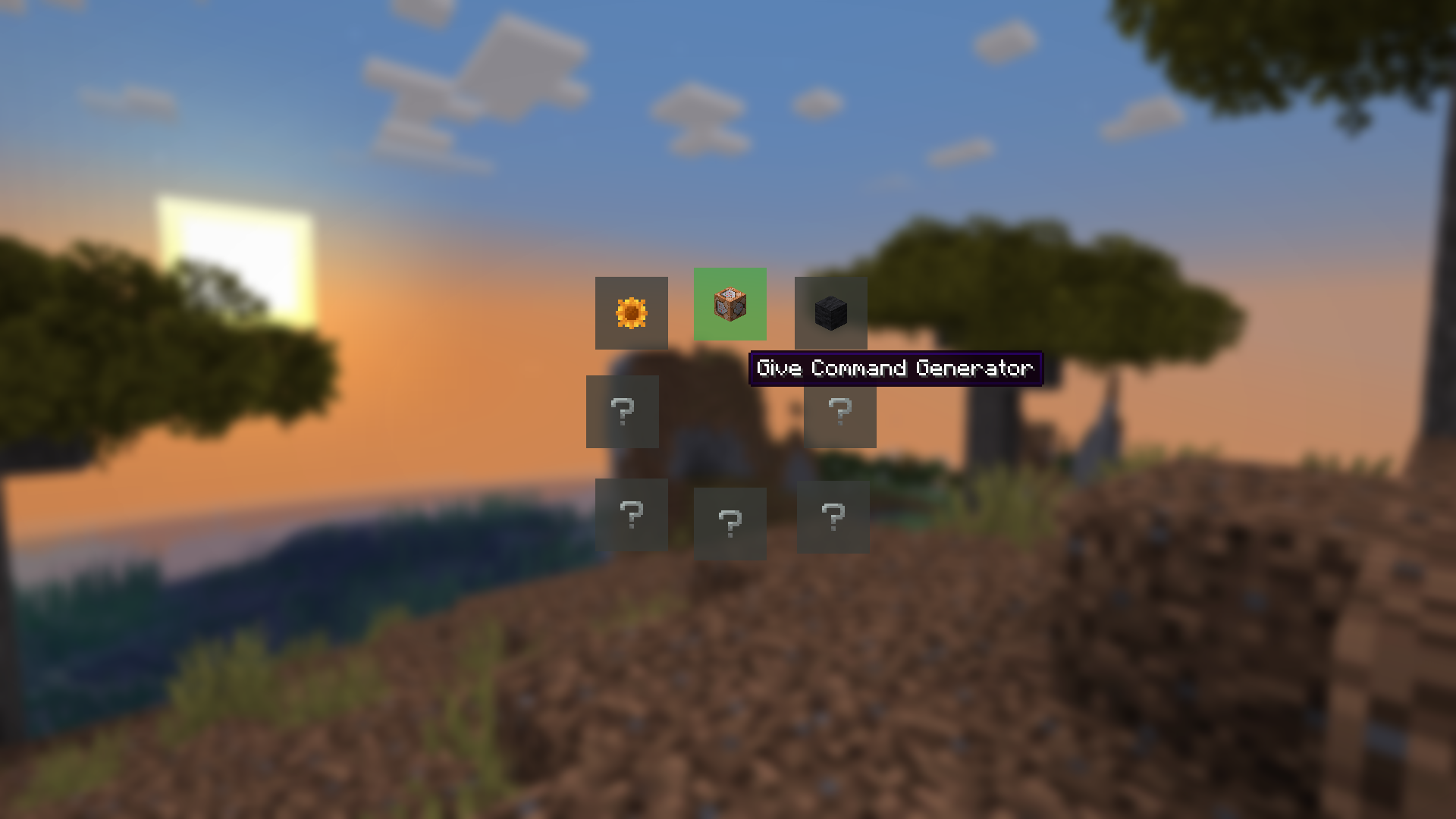
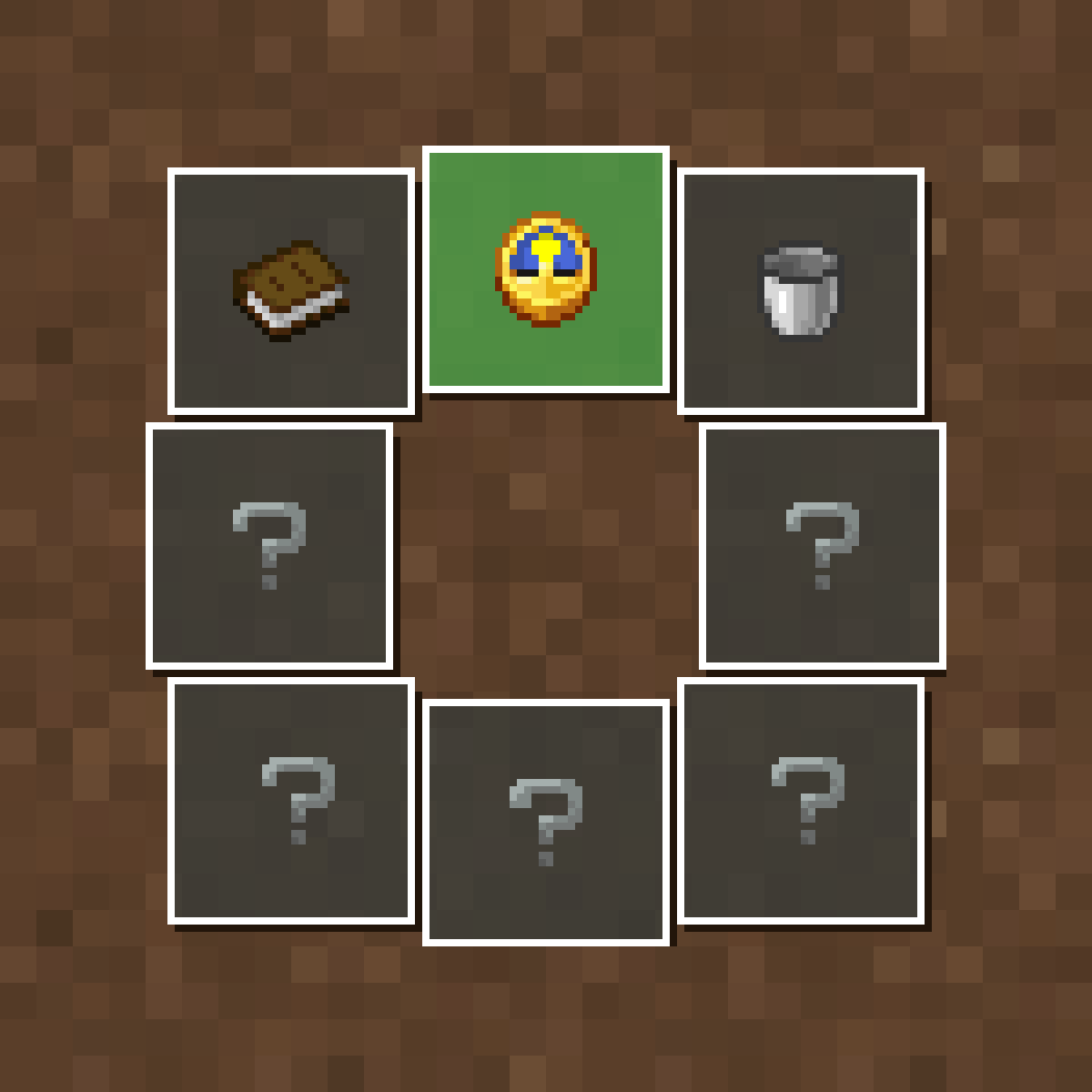
Before we start creating custom widgets, let's understand the basic capabilities of Selector Wheel. By default, pressing the [Z] key opens a circular menu with 8 widget buttons. These elements are loaded from the widgets folder in the .minecraft directory. Holding the [CTRL] key while opening the menu allows you to reload all widgets — this is convenient for quickly updating configurations.
What are widgets? They are tools that allow you to perform various actions in just a few clicks. Creating your own widget is simpler than it might seem. Let's examine the structure of JSON files.
💡 A widget is a ".json" format file located in the
widgetsfolder. Quick access to the folder can be obtained by pressing [WIN] + [R] and entering:%AppData%.minecraft\widgets.
{
  "title": "Comfort Mode",
  "preview": "minecraft:sunflower",
  "actions": [
    {
      "type": "command",
      "value": "weather clear"
    }
  ]
}
Let's consider a simple widget example. The "title" field defines the text you'll see when hovering over the widget in-game. This can be a string (as in the example above) or a formatted object. For example:
"title": {
    "text": "Comfort Mode",
    "color": "gray"
}
The "preview" field specifies the item that will be displayed in-game. In our case, it's a sunflower, but you can also add NBT data by converting the value to an object:
"preview": {
    "item": "minecraft:sunflower",
    "nbt": "{CustomModelData:1b}"
}
Now let's move to the main part of the widget — actions on click. The "actions" field represents an array of actions. Each action consists of "type" and "value" fields. The type defines the nature of the action (in this case "command"), and the value represents the data passed to the action. For example, for the "command" type, the value represents the command to be executed.
What other action types are available?
» "URL": opens the specified address in a browser. The URL must contain a valid scheme ("http" or "https"), example:
{
    "type": "url",
    "value": "https://modrinth.com/mod/selectorwheel/versions"
}
» "suggest": enters the specified string in the chat.
{
    "type": "suggest",
    "value": "/msg Notch "
}
» "clipboard": copies the specified string to the clipboard.
{
    "type": "clipboard",
    "value": "Village: 798 102 340"
}
But that's not all! There's also an optional field "server". It allows loading the widget only when connected to a specific server. For example, you can create such a widget for PvpLegacy:
{
  "title": {
    "text": "Challenge to duel",
    "color": "gray"
  },
  "server": "pvplegacy.net",
  "preview": "minecraft:iron_sword",
  "actions": [
    {
      "type": "suggest",
      "value": "/duel "
    }
  ]
}